Dinosaur Controller Guide
Use DualSense or DualShock pads confidently for camera, possession, and split-screen co-op.
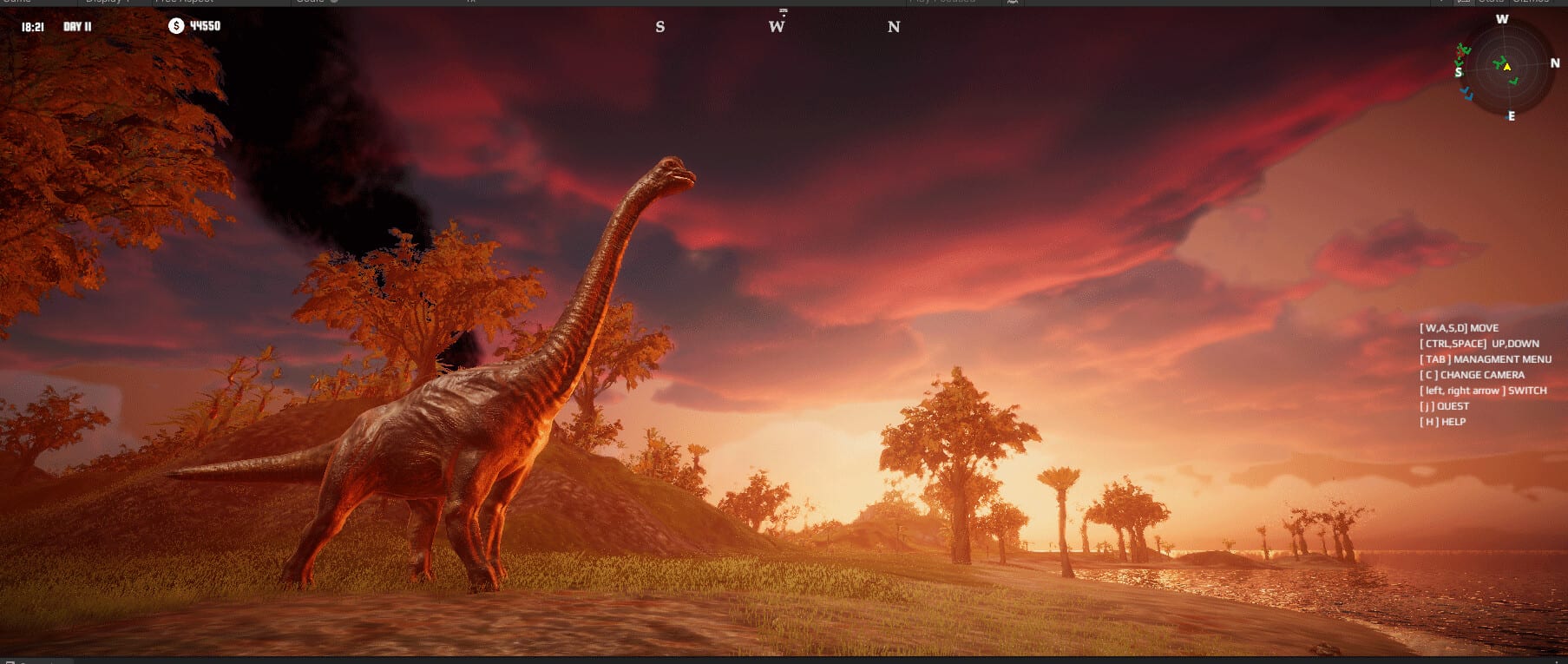
Steam lists DualShock and DualSense controller support plus partial controller support for Dinosaur (app 3294300). That mix usually means core movement and camera are pad-friendly while some editor precision may still prefer mouse. This Controller Guide prepares couch and desk players for launch on August 13, 2026. Pair it with Controls for the system map of camera, editor, and possession layers.
What “partial support” implies
Expect comfortable dinosaur possession and third-person movement on pad. Expect that fine terrain brushes, dense UI clicking, or precise prop placement may feel faster with mouse. Hybrid play is valid: sculpt with mouse in Creative, then grab a DualSense for FPS Survival runs (FPS Survival, Control Dinosaurs).
Recommended DualSense / DualShock habits
- Enable Steam Input if a community profile appears post-launch
- Increase camera sensitivity slightly for plains maps; lower it for ridge maps (Maps Overview)
- Keep a “panic pause / menu” thumb habit before herd disasters escalate
- Remap rarely used editor toggles off the face buttons you need mid-chase
Exact glyphs will finalize in the shipping build—learn actions, not only icons. The game is English-only, so read prompt labels carefully.
Split-screen co-op pads
Local co-op is a headline feature. Two players need two pads (or pad + keyboard). Agree who owns editor duty. Compact maps reduce motion sickness when cameras split (Local Co-op, Performance Tips).
Remote Play Together
Guest players often join with whatever pad they own. Hosts should keep binds simple and share a one-page action list from Controls. Streaming lag makes high camera sensitivity painful—err toward slower looks.
Mode-specific pad advice
| Mode | Pad priority |
|---|---|
| Creative | Optional; mouse wins for brushes |
| Classic | Pad fine for patrol; mouse for dense UI |
| FPS Survival | Pad shines for movement and camera |
| Co-op | Two pads preferred |
Accessibility and comfort
- Enable vibration only if it helps hunting cues without fatigue
- Use airplane or high grips for long Classic sessions
- Take breaks—island editors invite long Creative marathons
Launch-week checklist
- Test pad in Steam Big Picture before first boot
- Confirm second pad for co-op night
- Keep mouse nearby for editor emergencies
- Revisit this page after the first patch if Steam Input profiles change (Updates Hub)
Related reading
Pads make dinosaurs feel physical. Keep a mouse for the sculptor’s work.
Editor on pad: realistic expectations
Island editing rewards precision. On DualSense or DualShock, treat the right stick as a coarse camera and accept that brush edges may feel softer than mouse. For detailing coastlines and canyon exits on ridge maps, dock the pad and finish with mouse—then pick the pad back up for possession drills from Control Dinosaurs.
Create a mental binding board: face buttons for confirm/cancel and quick possession, shoulders for camera modifiers, sticks for move/look. Keep rarely used editor toggles on the touchpad click or a Steam Input chord so they never steal jump or sprint during FPS Survival.
Co-op binding diplomacy
Before local split-screen, spend two minutes aligning both pads. One player should not remid-session steal the shared menu button mental model. If keyboard plus pad hybrid is required, give the keyboard player editor duty and the pad player scout/possession duty—documented in How to Play and Local Co-op.
Sensitivity presets by archetype
Compact basins tolerate medium-high look speed. Ridge maps need slower looks to avoid vertigo at cliff edges (Maps Overview). Plains maps can use slightly higher horizontal speed for scanning herds but keep vertical look conservative.
Post-launch Steam Input
When community profiles appear, test one official-looking profile for thirty minutes before stacking custom chords. Export your working profile after the first good Classic night. Re-check after patches via the Updates Hub in case glyphs or default prompts change.
Pads make dinosaurs feel physical; mice keep islands precise. Use both without apology.
Frequently Asked Questions
Quick answers about Dinosaur on Steam.
Does Dinosaur support DualSense and DualShock?
Yes. Steam lists DualSense and DualShock support along with partial controller support overall.
Can I play the whole game on controller only?
Movement and possession should be comfortable on pad. Fine island-editor work may still be faster with mouse—hybrid play is recommended.
Do I need two controllers for local co-op?
Two controllers are the comfortable setup. Keyboard plus pad can work if players agree on roles.
Should I use Steam Input?
If a community or official Steam Input profile appears after launch, try it—especially for DualSense players—then tune camera sensitivity per map type.